

Building a better way to manage Koha LMS cron jobs
Last updated on: 24th December 2025| 16th December 2025 | Martin Renvoize | Koha
You know that sinking feeling when you’re SSH’d into a production server at 11 PM, carefully editing a crontab file, and you suddenly wonder: “Wait, did I save the backup?” Yeah, I’ve been there. Too many times.
Or, you’re a Koha librarian and you’d really like to know when that report’s meant to run or the emails are going to be sent.. Or even asked “Can I add a new task please”?
That’s why I built the Koha Crontab Plugin, because managing scheduled jobs shouldn’t require server access, terminal anxiety, and a good memory for cron syntax.
The problem that kept bugging me
Here’s the thing: Koha runs on cron jobs. Reports, cleanups, imports, exports – they’re all scheduled tasks. But managing them? That traditionally meant:
- SSH access to your server (which most library staff shouldn’t have)
- Editing text files in vi or nano (remember which one you prefer!)
- Remembering whether 0 * * * * means “every hour” or “at midnight” (it’s every hour, by the way)
- No undo button when you accidentally delete that critical line
- Zero visibility into what’s actually running.
For most libraries, this creates a bottleneck. Every little scheduling change requires a ticket. Want to adjust when your nightly report runs? Wait for your sysadmin. Need to temporarily disable a job? Hope someone’s available.
I kept thinking: there has to be a better way.
The “Aha!” moment
The solution hit me while reviewing someone else’s crontab that had about 50 different entries scattered everywhere with cryptic one-liners and zero documentation. What if we could manage the crontab file itself, but through a friendly web interface?
So I built a plugin that:
- Manages your actual crontab file directly (using Config::Crontab)
- Adds structured metadata to each job via comments
- Provides a web interface where you can see all your jobs in one place
- Lets you create, edit, enable/disable jobs without SSH access.
The jobs run through your normal cron daemon – nothing fancy, no extra layers. But now you get a nice UI, descriptive names, and the ability to manage everything without editing text files in a terminal.
What I built
The web interface you actually want
No more terminal required! We built a straightforward staff interface where you can:
- Create new scheduled jobs with descriptive names (not cryptic one-liners)
- Edit existing jobs without fear
- Enable or disable jobs with a click (no need to delete and recreate)
- See all your jobs in one place with their schedules and status
- Export everything to JSON for backup.
Rich job metadata
One thing that always frustrated me about traditional crontabs: zero metadata. You’d find an entry like 0 2 * * * /usr/local/bin/mystery_script.pl and spend 20 minutes figuring out what it does.
So I added structured metadata via comments:
- Job names: “Nightly patron import” beats “cronjob #7”
- Descriptions: Leave notes for future-you (or your colleagues)
- Environment variables: Each job gets its own environment config
- Timestamps: See when jobs were created and last modified
- Unique IDs: Every job gets a UUID for reliable tracking.
The plugin inserts these as special comment lines above each cron entry, so your jobs are self-documenting while remaining standard cron format.
Backup & restore
One-click export of all your job configurations to JSON. Perfect for documentation, disaster recovery, or just peace of mind.
Getting it running
Installation Steps
- Grab the latest .kpz file from the releases
- Head to your Koha staff interface: Administration → Plugins → Upload plugin
- Upload and enable it.
The plugin handles the rest:
- Creates backup directory for crontab safety
- Initialises a template crontab if you don’t have one
- Sets up the web interface for job management.
Pretty straightforward, right?
⚠️ Security: Please read this part!
Okay, this is important, so I’m going to be direct: this plugin executes shell commands with your Koha instance user’s permissions. That’s powerful, but it also means you need to lock it down properly.
Before you let anyone create jobs, you must configure security.
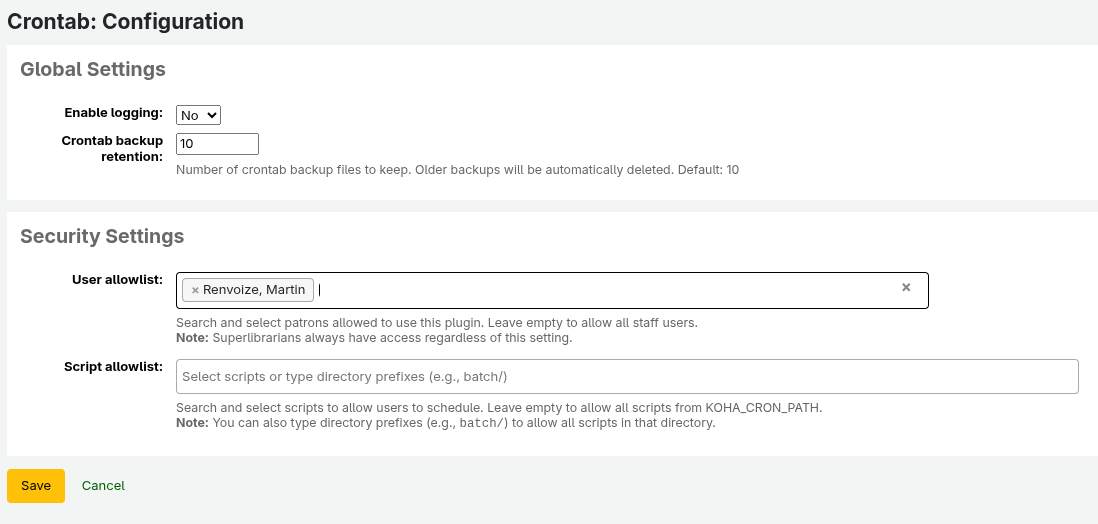
Step 1: Set up the user allowlist
You have two options here, the service provider way using the koha-conf.xml file in the server:
Edit your koha-conf.xml and add this to the <config> block:
<koha_plugin_crontab_user_allowlist>1,2,3</koha_plugin_crontab_user_allowlist>
Replace those numbers with the borrowernumbers of staff who should have access. Keep this list small – only people who understand the implications of running arbitrary commands on your server.
Alternatively, a superlibrarian can create a list from the plugin admin page to allow non-superlibrarians some limited access to the plugin.
This is not optional. Seriously.
Step 2: Establish which Koha scripts your users should be able to work with
The plugin admin allows you to define the subset of Koha scripts you would like to give your above selected staff to add and edit.
Step 3: Establish best practices
Make sure anyone with access knows:
- Review commands before enabling: Better safe than sorry, the script docs are now available right from the plugin!
- Be cautious with environment variables: They can change command behaviour in unexpected ways
- This is for experienced staff-only: With great power comes great responsibility!
I built in the allowlist feature specifically because I’ve seen what happens when command execution isn’t properly restricted. Don’t skip this step.
Real-world examples
So what can you actually do with this?
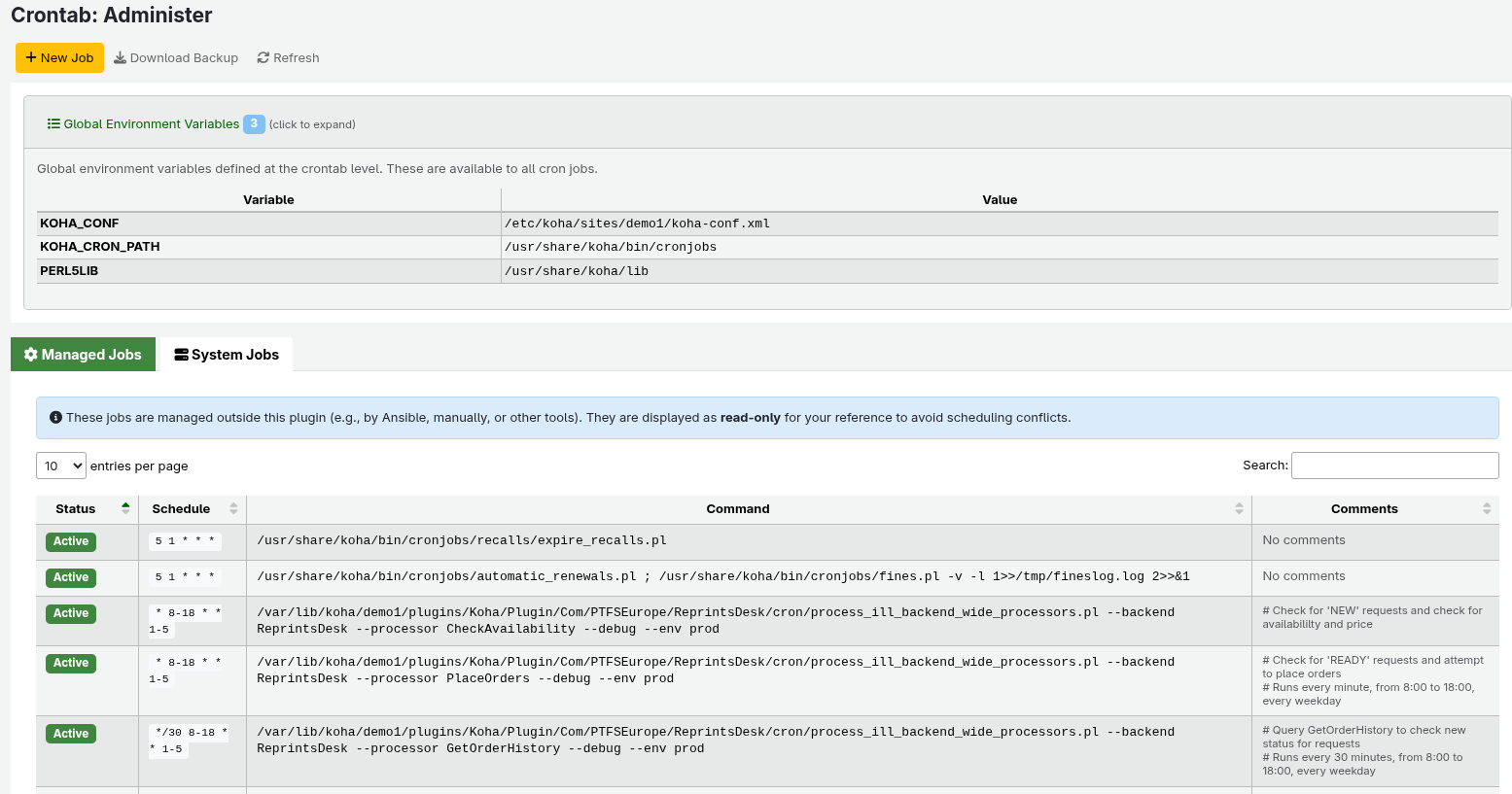
View the existing and system-scheduled tasks for your Koha
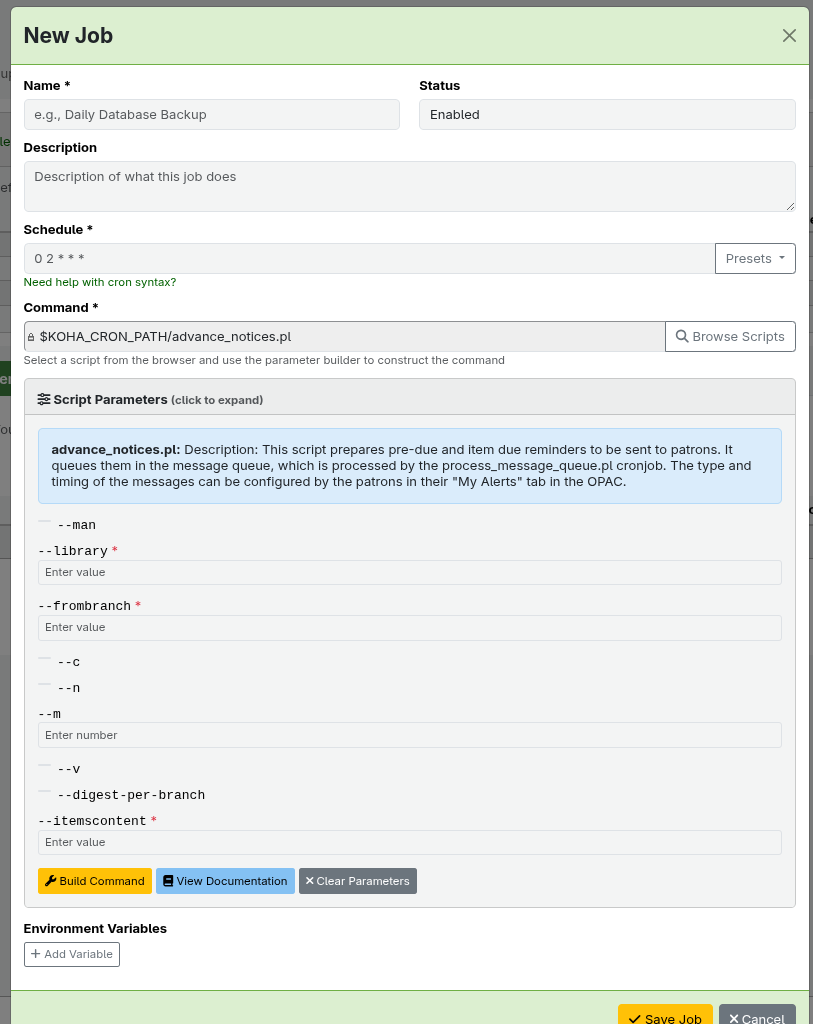
Add and Edit a subset of tasks
Day-to-day usage
Once it’s set up, managing jobs is pretty intuitive:
-
- Navigate to Plugins → Koha Crontab Plugin
- Click “Add New Job”
- Fill in the details:
- Give it a good name
- Add a description (trust me, you’ll forget what it does in 6 months)
- Set the schedule (cron syntax or pick from presets)
- Enter the full command using the picker tool
- Add any environment variables and flags if needed
- Enable it when you’re ready
All your jobs show up in one list with their schedules and status. Click to edit, disable, or delete. Simple.
When things go wrong (debugging)
Since jobs run through the regular cron daemon, they log wherever you configure them to log (or to your system’s cron log). The plugin itself focuses on making job management easier, instead of changing how cron executes things.
Tips for debugging:
- Ask support to check your system’s cron logs (usually /var/log/cron or via journalctl -u cron)
- Configure job commands to log to specific files
- Use the plugin’s backup feature to restore working configurations
- The web interface shows you the exact command that will run
Your jobs remain standard cron entries – just easier to manage.
How it works under the hood
For the technically curious: the plugin manipulates your actual crontab file using the Perl Config::Crontab module. When you create or edit a job through the web interface:
- The plugin reads your crontab file
- Adds structured metadata as comments (like # @name: Nightly import)
- Creates or modifies the actual cron entry
- Writes it back to your crontab
- The cron daemon picks it up automatically
Jobs are identified by a special UUID comment (@crontab-manager-id), which lets the plugin distinguish its jobs from system jobs. You can still have other cron entries, the plugin only manages the ones it created.
The benefit? You get a friendly web interface, but your jobs are still standard cron entries running through the normal cron daemon. No abstraction layers, no weird architectures – just better tooling for managing crontabs.
Current status: Early but ready
I’ll be honest: this is still early development. But it’s stable enough for production use (with proper security setup). I’m using it myself, and I’m actively improving it based on feedback.
Expect:
- Regular updates with new features
- Bug fixes as issues are discovered
- Enhanced security options
- UI improvements
I’d recommend testing it in a development environment first, but it’s definitely ready for real-world use if you follow the security guidelines.
Give it a try
If you’ve ever been frustrated by traditional crontab management (and really, who hasn’t?), give this plugin a shot. It’s available now for Koha 22.11 and later.
Requirements: Koha 22.11+, Installation: Upload the .kpz file via the Plugins interface Documentation: Full details in the repository.
—
I built this because I needed it, and I figured others might too. If you try it out, I’d love to hear your feedback: what works, what doesn’t, what features you’d like to see. You can find me on the Koha community channels or open an issue on GitHub.
Happy scheduling!
– The Developer Who Was Tired of SSH’ing at Midnight
Prepared by Martin Renvoize, Head of Development and Community Engagement.
Read Martin’s recent post reflecting on 15 years developing with Open Fifth – Fifteen Years and Counting: A Developer’s Journey Through Open Fifth
Featured image: Cyathea dealbata by Krzysztof Ziarnek, Kenraiz published under the Creative Commons Attribution-Share Alike 4.0 International license
(Source: Wikimedia Commons)