
In your upgrade to Aspen 26.04
Last updated on: 8th May 2026| 8th May 2026 | Aude Charillon | Aspen Discovery
Why the change in version name?
Perhaps you were getting used to your Aspen version name mentioning the quarter of the year – Q1 for the January upgrade, Q2 for the April one… And now it’s changed!
We decided to do this to better reflect what features you can expect in your Aspen. We are continuing to upgrade the Aspen sites we support on a quarterly basis. From April 2026, sites are upgraded to the Aspen version released that same month. So it was 26.04 for April 2026; it will be 26.07 in July, 26.10 in October.
What’s new since version 26_Q1
Here are our highlights from the new features to look out for after your upgrade. We tend to include the new features we think will be most useful for library teams while leaving aside the bug fixes!
- To view everything that’s new, check out the full release notes for each version on the old Aspen Help Centre site. Use the ‘Select a release’ dropdown to view notes for each version.
- To watch demonstrations of some of these new features, we recommend checking the Aspen Community Gathering agendas for Octover, November and December 2025 for links to videos, usually under the first agenda item. You can also check our own What’s On Our Mind.
- In these notes, click on the DIS number to view the original enhancement report on the Aspen community Jira site.
Contents
Administration
Search release notes within Aspen Discovery [DIS-1757, 26.01]
There is now a search bar in Administration > Aspen Discovery support > Release notes.
Search Administration settings [DIS-1810, 26.02]
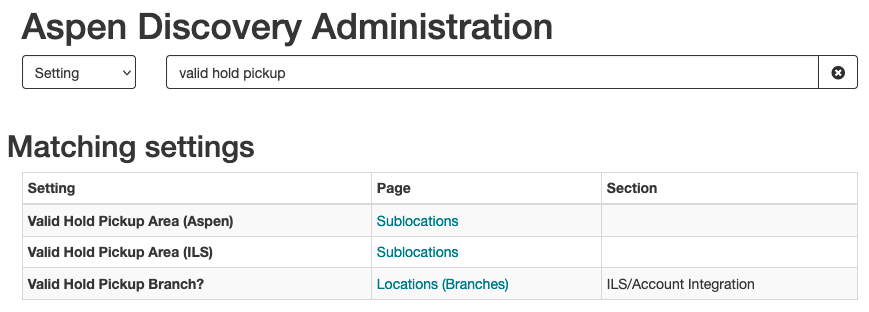
From the Administration home page, you could already search for headings within modules – e.g. Locations. By switching the search type from Page to Setting, you can now search for a setting name within a page, e.g. ‘valid hold pickup’.
Improvements to Community Engagement administration [DIS-1555, 26.02], [DIS-1551 and DIS-1582, 26.03]
Developed by Open Fifth
- Separate permission for access to the Community Engagement > Admin View page.
- When searching for a user in Community Engagement > Admin View, barcodes display next to the names in the drop-down menu – allowing for selection of the correct user.
- More classes for elements in the user account’s My campaign page. This makes selection of targeted CSS easier when styling the page.
Manual Grouped Works renamed Custom Grouped Works [DIS-2051, 26.04]
To avoid confusion, ‘Manual grouped works’ in the Catalog / Grouped works module has been renamed ‘Custom grouped works’.
Track clicks through on web builder placards [DIS-1039, 26.04]
There is already a functionality to link a placard to a Web resource. When using this, the number of clicks through to the resource from the placard is now counted separately. Usage counts can be seen in System reports > Usage dashboard > Web resource usage.
Reports for record counts [DIS-1985, 26.04]
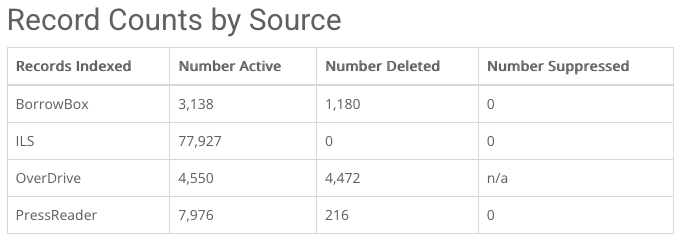
To better understand what titles are in your Aspen catalogue, two reports are now available in Collection reports: Record counts by source and Record counts by format.
New Setting: System Reports > Collection Reports
Promoting collections and services
Hero slider and digital signage system [DIS-1416, 26.01]
A hero section is a visually prominent area of a web page to welcome users and/or promote critical information. Aspen now allows library teams to create hero sliders (image carousels) for use on an Aspen web page, an external website or a digital signage system.
New settings: Local Catalog Enrichment > Hero Slider Locations; Local Catalog Enrichment > Hero Slider Playlists
How it works: see Aspen Help Centre
Creating events set in the past [DIS-1691, 26.01]
If you need to create events set in the past for reporting purposes, you can now do so. These events will not appear in search results but will be included in the Event Reports total hours for that date.
Create events with no start or end times [DIS-1712, 26.01]
Useful for those events for which there is no need for exact times to be displayed in the Aspen Events calendar – e.g., library closures. Events with hidden start and end times will show before other events in the calendar and still be counted in total event hours in reports (if applicable for the event type).
New setting: Events > Manage Events > Hide Start and End Times for This Event
Customisations for the Events calendar [DIS-1713, DIS-1706, DIS-1705, 26.01]
You can now:
- Customise the calendar title. New setting: Events > Calendar Display Settings > Calendar Title
- Decide whether to display the full month name. New setting: Events > Calendar Display Settings > Show Full Month Names
- Add a footer to your Events calendar. New setting: Events > Calendar Display Settings > Footer
Default location filter for Events calendar [DIS-1578, 26.03]
Sponsored by West Sussex County Council, developed by Open Fifth
You can decide what should be the default for the location filter on the Events calendar: all events at all locations; events at the logged-in user’s home library; first alphabetical library.
New setting: Primary Configuration > Library Systems > Events > Default Calendar View
Show event location on thumbnail [DIS-1565, 26.03]
Sponsored by West Sussex County Council, developed by Open Fifth
Within the Event type – or, if enabled, when creating an event – you can decide whether to show the event location on the event thumbnail (or ‘cover image’). This will help highlight the event location in the search results. It will be especially useful if you create collection spotlights from events, as the thumbnail is the main element people see in the carousel.
New settings: Events > Events Types > Display Event Branch on Thumbnail; Events > Events Types > Display Event Branch on Thumbnail Customizable?; Events > Manage Events > Display Event Branch on Thumbnail
Use the same milestone multiple times in a campaign [DIS-1924, 26.04]
Developed by Open Fifth
In Community Engagement > Campaigns, the same milestone can be used multiple times in the same campaign, with different goals each time. For example: ‘borrow books: goal = 3’ completes a milestone; ‘borrow books: goal = 6’ completes another.
Search experience
Settings for sharing to social media [DIS-1877, 26.02]
The full record view has options to share to social media. You can now choose specifically which social media platforms users can share to: Facebook, Pinterest or X. You can also decide whether to show the icon for copying the record link to the clipboard.
To achieve this, the previous ‘Show Sharing To External Sites’ option has been split into multiple settings.
New settings: Primary Configuration > Library Systems > Full Record Display > Show Sharing To Twitter/X; Primary Configuration > Library Systems > Full Record Display > Show Sharing To Facebook; Primary Configuration > Library Systems > Full Record Display > Show Sharing To Pinterest; Primary Configuration > Library Systems > Full Record Display > Show Generic Sharing Link
Filtering for lists [DIS-160, 26.02]
When viewing a list made of multiple elements (library titles, events, lists, etc.), you can now filter it by type of content. If the list only contains library titles, the same facets as in the Library catalogue search will display. When one or more filters are applied, printing, emailing, exporting to CSV, exporting to RIS, and generating Citations will all reflect the filtered list.
If a list is being viewed with filters, the options to delete all entries, create a Collection spotlight, reorder titles manually, etc. will not be available.
The sort order ‘Available copies’ replaces both ‘Availability’ and ‘Number of copies’ which had the same function. Previous functionality to filter only by format has been removed.
Customise lists facets [DIS-541, 26.04]
Facets for lists search results can now be customised, in a similar way to other Aspen search facets.
New setting: User Lists > User List Facets
How it works: see Aspen Help Centre
Transfer lists [DIS-1556, 26.04]
You can transfer ownership of your Aspen lists to another Aspen administrator. This is helpful when new staff take responsibility for managing lists.
New Permission: User Lists > Transfer Lists
How it works: see Aspen Help Centre
Custom author names for lists [DIS-541, 26.04]
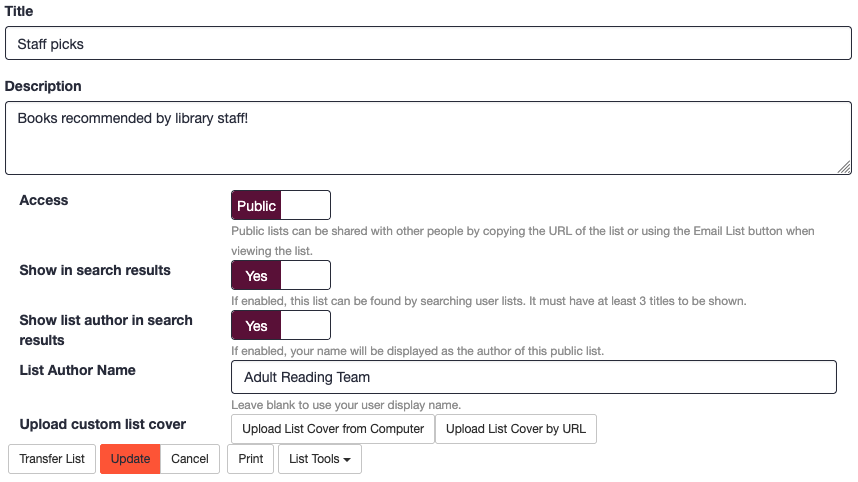
It was already possible to hide the name of the creator of a public list in the search results. If this option is chosen, the list author appears as ‘Library staff’. There is now an alternative: set ‘Show list author in search results’ to ‘Yes’ and use the new setting to give the list a custom author name.
New setting: User Lists > List Author Name
Exclude specific locations from the ‘Available at’ facet [DIS-1990, 26.03]
Rather than using code to hide some locations from the ‘Available at’ facet, there are now settings to properly exclude them at the Library system and Locations levels.
New settings: Primary Configuration > Library Systems > Searching > Search Facets > Locations to Exclude from Available At Facet; Primary Configuration > Locations > Searching > Search Facets > Locations to Exclude from Available At Facet
Access all available facet values in Advanced search [DIS-2128, 26.04]
In the Advanced search, you can browse and search all available facet values. Fields still show a drop-down menu with the top values; now, only 5 values are shown plus a ‘More options…’ entry. The latter opens a popup modal similar to the one used for the search results facets.
Setting for eContent in Shelf location facet [DIS-2116, 26.04]
You can choose for eContent not to appear in the Shelf location facet. This is useful if you prefer to use this facet solely for physical materials.
New setting: Catalog / Grouped Works > Grouped Work Display Settings > Include eContent in Shelf Locations Facet
View full item details in ‘Where is it?’ [DIS-1984, 26.04]
You can now choose whether to show the full item details in the ‘Where is it?’ display instead of the summary details.
New setting: Grouped Work Display Settings > Where Is It Display Style
User account
Pay360 payment platform [DIS-1068, 26.01]
Sponsored by West Sussex County Council, developed by Open Fifth
Library teams that use Pay360 as their payment platform can now configure it in Aspen. Users will be able to pay their fines when logged in to their account. Any payments taken via Aspen will trigger updates to the corresponding accounts in the library management system.
New setting: eCommerce > Pay360 Settings
Updates to Community Engagement [DIS-1559, 26.02; DIS-1570, 26.03]
Developed by Open Fifth
In the user account’s ‘My campaigns’ page:
- Library members will see more information regarding enrollment dates. If a campaign is closed for enrollment, this will be made clear. If enrollment starts in the future, the date will be displayed.
- Library members can remove campaigns they are not interested in. Note: administrators can restore removed campaigns for individual users in Administration > Community engagement > Admin view > select a user > Restore campaign for user.
Email when there are new results in a saved search [DIS-1469, 26.03]
In their account’s Account settings > Your preferences, library members can opt in to be notified by email when new titles are added to their saved searches.
Aspen LiDA
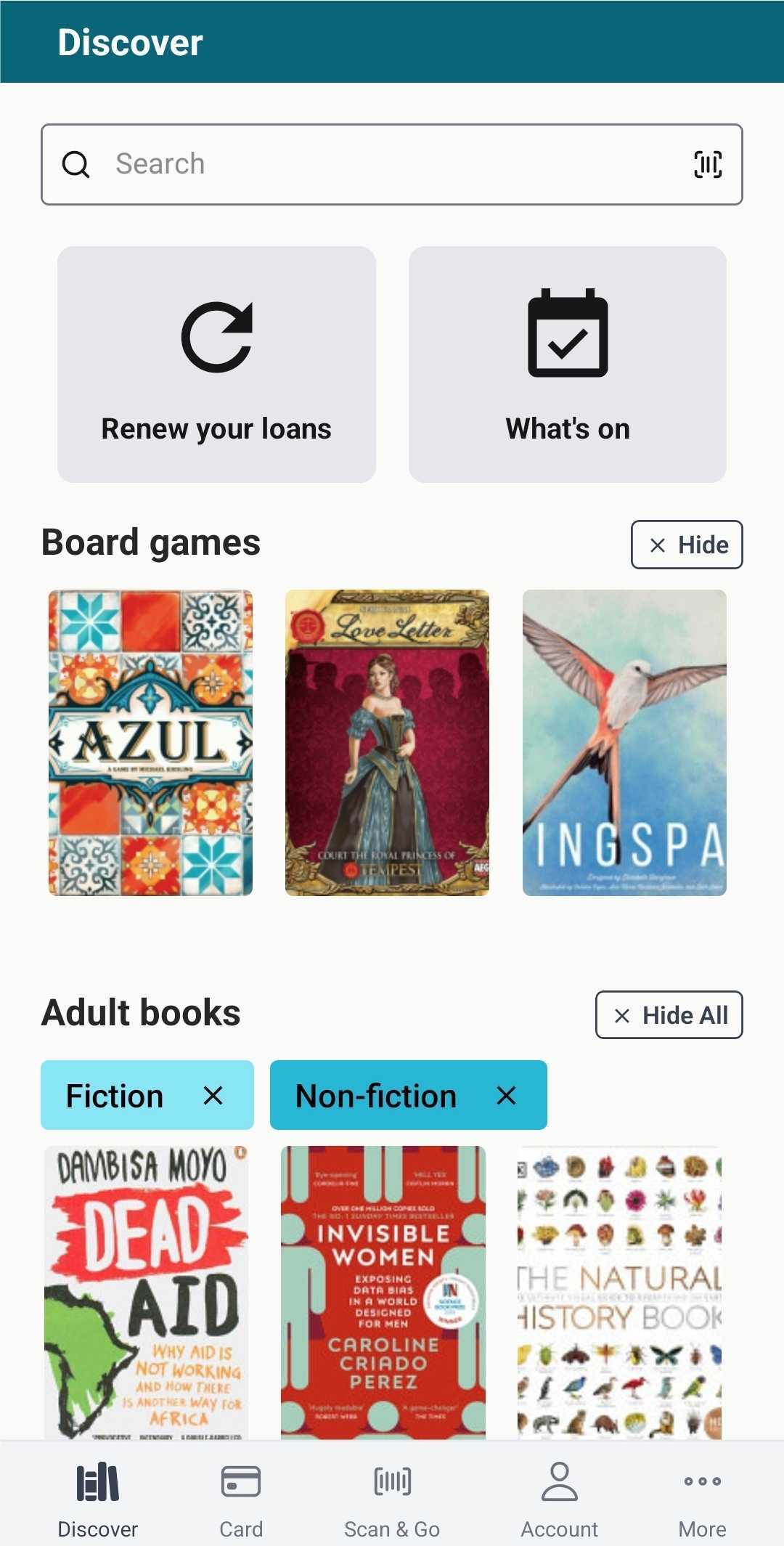
Display browse sub-categories as buttons under their parent category [DIS-1447, 26.01]
The browse categories on the app home screen have been redesigned to group sub-categories as buttons under their parent category for easier browsing.
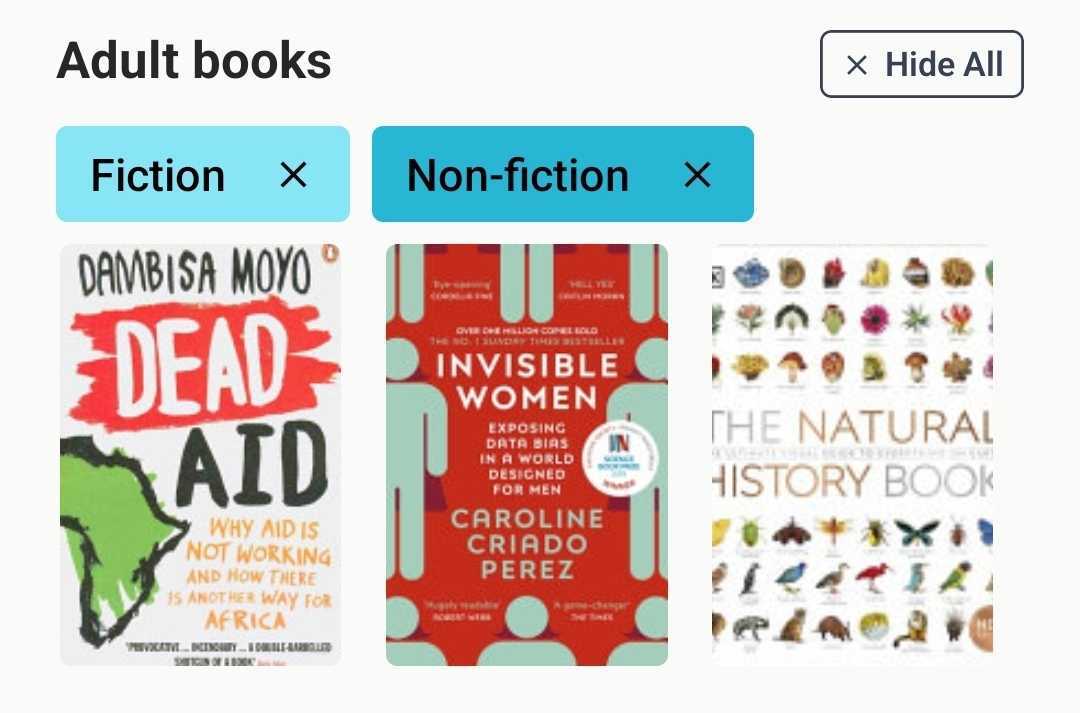
Organise lists into hierarchical groups [DIS-1471, 26.01]
Lists can now be organized into groups with a nested hierarchy, just like in the web interface.
Customise links on the app home page [DIS-886, 26.02]
You can create custom links to display on the app home page above any browse categories. These can be links to elements within the Aspen app – a page in the user account, a search, etc. – or links to an external website.
New settings: Aspen LiDA > Home Screen Link Groups; Aspen LiDA > Home Screen Links; Primary Configuration > Library > Aspen LiDA > Home Screen Link Group; Primary Configuration > Locations > Aspen LiDA > Home Screen Link Group
How it works: see Aspen Help Centre