

What’s on our mind: Getting started with auto-renewals in Koha
Last updated on: 11th September 2025| 20th August 2025 | Lucy Vaux-Harvey | Koha
Auto-renewals is a really popular feature with library patrons, it is good to know you have bagged an extended loan and don’t have to remember due dates for a while. If your library is considering auto-renewals as a service or you simply want more information, this blog post explains how to get auto-renewals up and running.
Circulation rules
Auto-renewals are largely configured from the circulation rules. This is really handy as it gives you the flexibility to pick and choose which library / patron category / item type combinations should be auto-renewable.
In the circulation rules you will see these columns
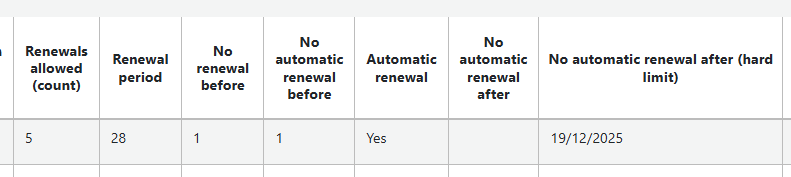
- The first 3 columns relate to both manual and auto-renewals. Set the number of renewals allowed and the renewal period.
- No Automatic renewal before – you must set this for any rules using auto-renewal. Why?, because this setting tells Koha not to attempt an auto-renewal until the loan is nearly at its due date, in this case 1 day before.
- Automatic renewal – this is a Yes/No option to activate auto-renewal for this particular rule.
- No automatic renewal after and No automatic renewal after (hard limit) – these are optional settings and apply limits to the overall amount of time a patron can have a loan. The first means ‘allow auto-renewals for a period after check out of x days’. The second is similar in function but requires a date. This could be useful for academic libraries that require all loans to be returned to the library at the end of term.
How it works
Auto-renewals will start as soon as you update a circulation rule but only for new loans. Existing loans will continue to require manual renewals until they are checked in. Bear this in mind as you will have a mixture of renewal types to start with.
Once you have these settings in place all you need is the automatic renewals script running nightly on your server to process any auto-renewals that fall within the circulation rule parameters. The renewals remaining will decrease in the same way as standard renewals. Once all renewals are exhausted the loans should be returned by the final due date or they will become overdue as per your overdue processes.
The screenshot below shows the display of auto-renewal loans in the patron’s OPAC account.

Optional settings
There are a couple of system preferences that you might also want to consider.
- Do you want to allow ad-hoc auto-renewals? The system preference AllowSetAutomaticRenewal allows staff to flag items for autorenewal from a tickbox on the check out page.
- Do you want to allow staff and/or patrons the ability to opt in/out of auto-renewals? The system preference is AllowPatronToControlAutorenewal and offers a tickbox on the patron account page.
Auto-renewal email notifications
It is fair to say that auto-renewal notices had a chequered beginning. When first available the notice wasn’t a digest so patrons received one notice per loan – not ideal at all. Once a digest version was introduced it had a habit of sending unwanted notices, it certainly kept us busy on support! The template has now been wrangled into good shape, thanks in no small part to our own Martin Renvoize shepherding changes through the community development process.
If you wish to send notices (it is optional) the system preference to look for is AutoRenewalNotices. Set it to ‘according to patron messaging preferences’. Then, in your patron category configuration, enable the notice under Patron Messaging Preferences as you do for other notifications.
Note that changes to these messaging preferences do not cascade down to existing patron accounts. Raise a support ticket if you are an Open Fifth customer and we can run a script to push the updated preferences onto existing accounts.
When is the notice sent? A notice will be generated overnight for any patron who has at least one loan that is due for auto-renewal based on your circulation rule settings.
The notice template
What is included? The notice gives a summary of how many loans renewed successfully and how many failed to renew. Successful renewals are listed with their new due date. Failed renewals are listed with a reason, maybe the number of renewals allowed has been reached, another patron has placed a hold on the item, or the patron is restricted.
You can customise the email template to add your own instructions for returning items that have failed to renew. The notice template is stored in Tools > Notices & Slips with the template code AUTO_RENEWALS_DGST. Take care though, this is one of the trickier templates to work with so seek assistance if required.
Finally…
..here are my top tips for making auto-renewals a success with your patrons.
Avoid setting auto-renewals for books in high demand or those on a short loan period. It is obvious really, but keep auto-renewals for material you are happy (and expect) to lend out for a reasonable length of time. Repeated auto-renewal failures or lots of notices in quick succession and are likely to cause annoyance!
Offer a reasonable number of auto-renewals per loan – as above, if you offer the convenience of auto-renewals you want the material to be easily managed and remain on loan.