
Aspen Discovery: Admin Control of Campaigns
Last updated on: 11th September 2025| 14th August 2025 | Alexander Blanchard | Aspen Discovery
Ensure that you have ‘Allow Admin to Enroll Users in Admin View’ set to true in Primary Configuration > Library Systems > Allow Admin to Enroll Users in Admin View.
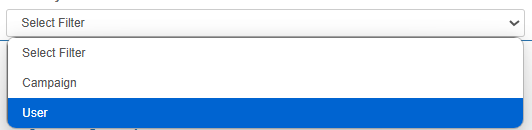
Navigate to Administration > Community Engagement > Admin View and in the top filter, select ‘user.’
If the user has logged into Aspen before, you will find their name in the search box. If they have not, select the ‘Add User By Barcode’ button below the search box.
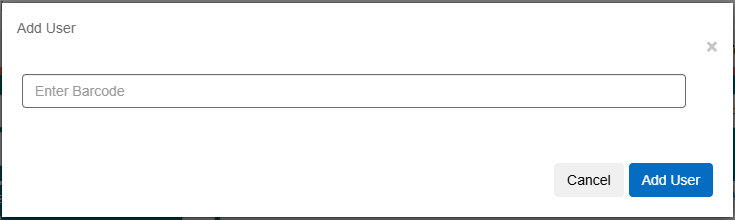
A modal will appear, as shown above. Add the user’s barcode and select ‘Add User.’
The user will now appear in the dropdown when you search for their name as shown below. 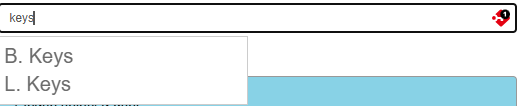
Note: I am using the ‘Search Bar’ option in the Primary Configuration > Library Systems > Admin View User Select setting to use a search box rather than a dropdown for my users.
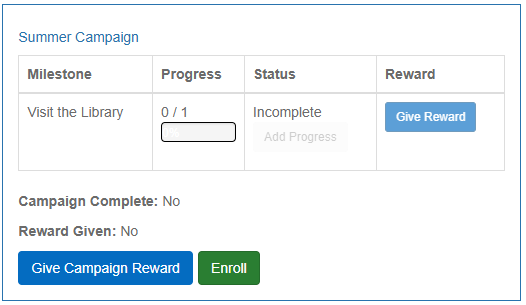
As shown below, this will display a list of campaigns your user is eligible for. From here, you can enrol or unenrol the user, control rewards and add progress for manual milestones.