

In your upgrade to Aspen 26.07
Last updated on: 23rd July 2026| 23rd July 2026 | Aude Charillon | Aspen Discovery
What’s new since version 26.04
Here are our highlights from the new features to look out for after your upgrade. We tend to include the new features we think will be most useful for library teams while leaving aside the bug fixes!
- To view everything that’s new, check out the full release notes for each version on the old Aspen Help Centre site. Use the ‘Select a release’ dropdown to view notes for each version.
- To watch demonstrations of some of these new features, we recommend checking the Aspen Community Gathering agendas for May, June and July for links to videos, usually under the first agenda item. You can also check our own What’s On Our Mind.
- In these notes, click on the DIS number to view the original enhancement report on the Aspen community Jira site.
Contents
Administration
Store holidays and special hours per location [DIS-2228, 26.05]
In Primary configuration > Library system, the Holiday section has been renamed “Holiday and Special Hours”. Which library’s holidays are managed here is controlled through a tickbox “Show in Holidays & Special Hours table” in the Locations settings.
One holiday can apply to multiple locations. Instead of the location(s) being closed, you can set special hours for that day.
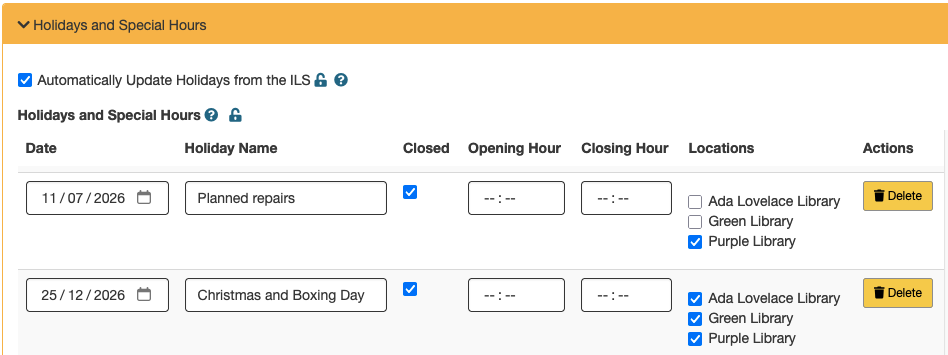
New settings: Library Systems > Holidays and Special Hours; Locations > Show in Holidays & Special Hours table
Add a plugin system [DIS-1430, 26.05]
Co-developed by Open Fifth
Aspen now includes a plugin system. Plugins will be used to add custom functionality to Aspen that is highly specific to an individual library or that contains proprietary information not suitable for inclusion in the main codebase.
New permission: System Administration > Administer Plugins. New setting: System Administration > Plugins
How it works: see Aspen Help Centre
Customise the saved search email [DIS-2142, 26.05]
Users who have created saved searches can choose to receive an email when new titles are returned in their saved search. This email’s template can now be customised by library staff.
The email can show a list of searches that have updates as well as up to 3 new titles for each search.
New setting: Email > Email templates > Default Saved Search Alert.
How it works: see Aspen Help Centre
Target system messages to more locations [DIS-2453, 26.06]
In Local Enrichment > System Messages > Show On, you can now set a system message specifically to appear on: Events pages; Your searches; Preferences; Libby options; Your lists; the Home page.
System messages display under the header so they can be used as instructional text.
How it works: see Aspen Help Centre
Schedule offline mode in advance [DIS-423, 26.06]
Aspen offers the ability to put the site in “offline mode”: this suspends the user login and the records indexing from the library management system. It is particularly useful when your library management system is being upgraded, to prevent any actions taking place during the process. Instead of using the on/off switch, you can now schedule your offline mode in advance by setting start / end dates and times.
New settings: System Variables > Scheduled Offline Start; System Variables > Scheduled Offline End; System Variables > Allow Login with eContent Active for Scheduled Offline Mode.
How it works: see Aspen Help Centre
Set a default language and remember the user’s preference [DIS-2411, 26.06]
You can now set a default language other than English for your site. English will still be an option, but (unauthenticated) users who first land on your site will see it in its default language.
This default language may be overridden by the user’s browser language preference: the interface now detects this and applies it if that language was set up in Aspen.
Manual language selection (using the “Languages” button) now persists as a long-lived cookie, preserving the user’s preference across browser sessions without requiring a login.
New setting: Languages and Translations > Languages > Default Language
Use any currency [DIS-2288, 26.07]
Developed by Open Fifth
In System Administration > System Variables > Currency Code, the drop-down menu – with the sole options USD, CAD, EUR, GBP – has been replaced by a free-text field. Enter the currency code for the library’s country, for this currency to be used across your Aspen site.
Usage graphs reporting periods [DIS-1689, 26.07]
Developed by Open Fifth
The Usage dashboard, API usage dashboard, Side loads dashboard, Summon dashboard graphs can now be displayed and downloaded grouped by a selectable reporting period. As well as the previous default “Month”, there are options to group by day, year or custom period.
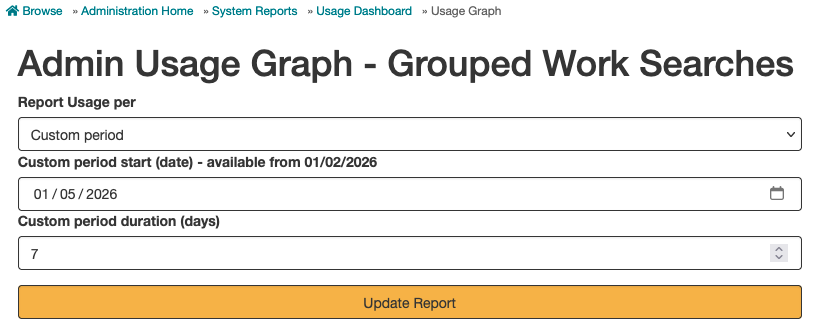
Look and feel
Display event dates using locale-aware formatting [DIS-1585, 26.07]
Sponsored by West Sussex County Council, developed by Open Fifth
In the ‘Other dates in this series’ box on a repeating event page, the date format now follows the locale set for the language you are in.
For example: go to Languages and Translations > Languages > English. If the Locale is ‘en-US’, dates will display as ‘July 27 2026’. If the Locale is ‘en-GB’, dates will display as ’27 July 2026′.
Make content full width [DIS-2532, 26.07]
In themes, there was already an option to make the header and footer full width. You can now also make the main content area full width.
New setting: Themes > Make Content Full Width
How it works: see Aspen Help Centre
Search experience
Settings for Explore More sources [DIS-2189, 26.05]
The Explore More box in the search results can now be configured more finely. You can add or remove sources from the display and sort them in order of preference.
New page: Local Catalog Enrichment > Explore More.
How it works: see Aspen Help Centre
Exclude selected web resources from Explore More [DIS-2188, 26.05]
Web resources appear in the Explore More box in the search results. You can now prevent selected ones from displaying.
New setting: Web Builder > Web Resources > … > Show in Explore More.
How it works: see Aspen Help Centre
Facet for audiobook duration [DIS-2338, 26.05]
The duration of an audiobook is now displayed on the record in Aspen. This information is pulled from the MARC 300$a field for Koha records and the duration field for OverDrive records.
You can add a search facet to your catalogue for this field. The facet takes a range in hours.
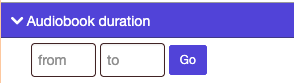
New setting: Catalog / Grouped Works > Grouped Work Facets > … > Facet > Audiobook Duration.
How it works: see Aspen Help Centre
Primary language for grouped works [DIS-2167, 26.05]
Grouped work records now use a primary language for the work. This is useful when filtering the search results by language.
The language search facet is now used for “Language (Primary Only)” and has been renamed as such in the facet settings. To retain the old functionality, you will need to use the “Language (All)” search facet.
Note: to use this functionality, Solr files need to be updated followed by a full index.
New settings: Catalog / Grouped Works > Grouped Work Facets > … > Facet > Language (Primary Only); Catalog / Grouped Works > Grouped Work Facets > … > Facet > Language (All).
Show earliest publication date for grouped works [DIS-2452 , 26.06]
Currently, editions with different publication dates grouped together cause the grouped work record to display: “Publication date = Varies, see individual formats and editions”.
There are now options to display instead the earliest publication date in the search results and full record view.
New settings: Catalog / Grouped Works > Grouped Work Display Settings > Full Record Display > Show Earliest Publication Date for Full Record; Catalog / Grouped Works > Grouped Work Display Settings > Search Results > Show Earliest Publication Date in Search Results.
Settings for ‘More Like This’ feature [DIS-2403, 26.06]
You can narrow down what is recommended in the ‘More like this’ feature to items in the same format and/or in the same library system.
New settings: Primary Configuration > Library Systems > … > ILS/Account Integration > More Like This Settings.
How it works: see Aspen Help Centre
Promoting collections and services
Aspen Events
If you were already using Aspen Events, make sure that just after your upgrade, you:
- create an Aspen event setting;
- update your Event fields to add a Field use;
- update your Event fields sets to add The intended use for the field set.
Event registration [DIS-1597, 26.05]
Sponsored by Sefton Libraries with LibraryOn, developed by Open Fifth
You can set up registration for your Aspen Events.
- Library members will be able to register using their library card details.
- They can also register their linked accounts and manage registrations for both themselves and their linked accounts.
- You decide how many places are available; the number of seats is publicly displayed on the event details.
- You can choose to have some event types that require registration and others that don’t.
New setting: Primary Configuration > Library systems > … > Events > Allow Event Registration. All other settings in Events module.
How it works: see Aspen Help Centre
Waiting lists [DIS-1909, 26.06]
Sponsored by Sefton Libraries with LibraryOn, developed by Open Fifth
If you have enabled registration, you can choose to configure a waiting list for your event type.
- When an event is sold out, library members will have the option to join the waiting list. They will see the number of places available in the waiting list and, if they join it, what position they are in.
- If a registration is cancelled or the number of places for the event is increased, the first person on the waiting list will be invited to register. If they do not register within the time allowed, their invitation will become invalid. The next person on the waiting list will be invited to register instead.
- You can define how long an invitation to register from the waiting list remains valid.
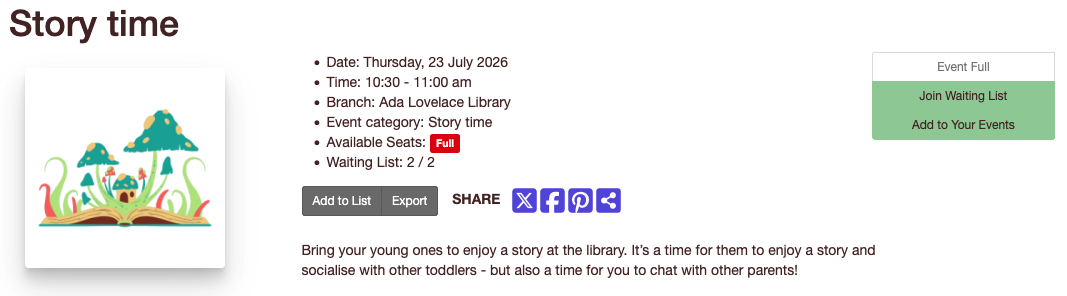
New settings: Primary Configuration > Library systems > … > Events > Display Event Notifications in Account; Events > Configure Event Types > … > Waiting List Invite Expiry (Hours); Events > Aspen Events – Manage Events > … > Enable Waiting List.
How it works: see Aspen Help Centre (configuration within Create event templates; user experience further down the page)
Event notifications [DIS-1909, 26.06]
Sponsored by Sefton Libraries with LibraryOn, developed by Open Fifth
Library members can opt in to event email notifications from their account preferences. Users who have opted in and have a contact email address saved to their account will receive an email when:
- they are invited to register from the waiting list;
- their invitation to register from the waiting list expires;
- an event they are registered on is cancelled;
- an instance of an event they are registered on is deleted.
You can customise these notices in Email > Email Templates.
How it works: see Aspen Help Centre (Review email templates; User experience > Enable events notifications)
Custom registration fields [DIS-1597, 26.06]
Sponsored by Sefton Libraries with LibraryOn, developed by Open Fifth
You can customise the event registration form using Event fields and Event field sets. You can create different registration field sets to be used in different event types.
New settings: Events > Configure Event Fields > … > Field Use; Events > Configure Field Sets > … > The intended use for the field set; Events > Configure Event Types > … > Event field sets > Registration form.
How it works: see Aspen Help Centre (configuration within Create event templates)
Multi-attendee registration [DIS-1597, 26.06]
Sponsored by Sefton Libraries with LibraryOn, developed by Open Fifth
You can create attendee categories – e.g. Adult, Child, Carer – and use these for registration.
- You can assign a number of places available per attendee category.
- Users will be able to register for more than one place at a time (e.g. 1 Adult place for themselves plus 2 Child places).
- Only the details of the library member registering will be stored.
New page: Events > Configure Attendee Categories. New setting: Events > Configure Event Types > … > Attendee Categories.
How it works: see Aspen Help Centre (configuration within Create event templates)
Attendance management [DIS-1597, 26.06]
Sponsored by Sefton Libraries with LibraryOn, developed by Open Fifth
The Attendance Management page gives you a summary of registrations for all events (only events for which registration is enabled are listed). You can also:
- view all registrations for each event;
- register library members for events;
- mark registered users as having attended;
- download an attendee list meant for printing;
- download a CSV file intended for statistics monitoring.
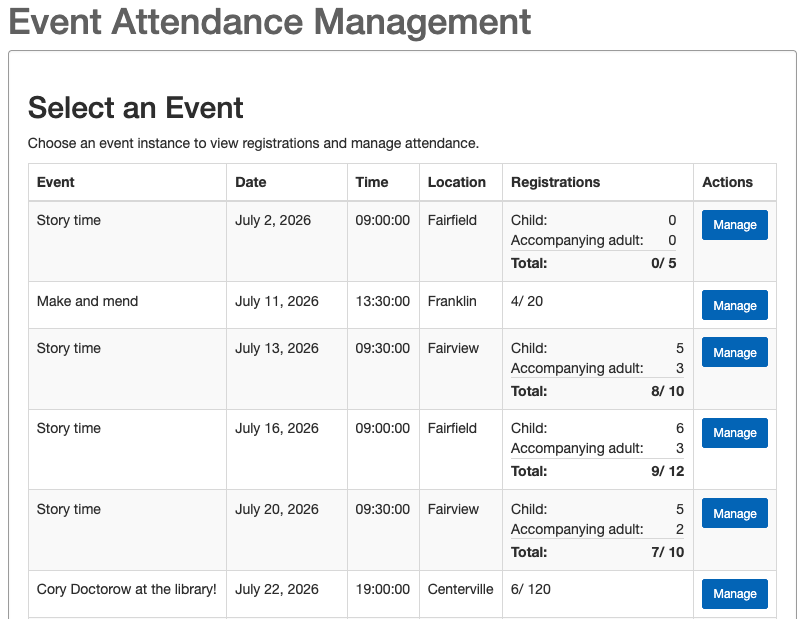
New page: Events > Attendance Management.
How it works: see Aspen Help Centre
Fixes for date fields filters [DIS-2161, 26.06]
Developed by Open Fifth
On the Events > Aspen Events – Manage Events page, unused filters have been removed and filters based on date are now working.
User account
Use Koha grouped holds in Aspen [DIS-1191, 26.05]
Developed by Open Fifth
The concept of group holds was introduced in Koha 25.11 (by bug 15516). This feature can now be used by library members in Aspen, if the DisplayAddHoldGroups system preference is enabled in Koha.
New setting: Primary Configuration > Library Systems > … > ILS/Account Integration > Holds > Allow Grouping Holds.
Additional filters on Holds page [DIS-2389, 26.06]
In Your Account > Titles On Hold, you will see a filter for Formats, Linked Accounts and Statuses.
Choose which saved searches to receive notifications for [DIS-2469, 26.06]
If you have “” set to ON in Account Settings > Your Preference, you will now see a Notifications toggle for each saved search in Your Account > Your Searches. Use these toggles to choose which saved searches you want and don’t want to receive emails about.
Use Koha’s BorrowersTitles system preference [DIS-1554, 26.07]
Developed by Open Fifth
Aspen’s “salutation” field in the user details did not used to pull through values set in Koha’s BorrowersTitles system preference. This patch ensures the BorrowersTitles values are now used for the self-registration form and in My Account > Contact Information.
Display patron attribute values in user account [DIS-2637, 26.07]
Developed by Open Fifth
This patch ensures patron attribute values in My Account > Contact Information are pre-populated from Koha.
Display checkout fee at renewal [DIS-2349, 26.07]
Developed by Open Fifth
If you have set a rental charge in your Koha item type settings and have enabled the Koha RentalFeesCheckoutConfirmation system preference, users renewing those items in Aspen will be informed of the fee amount that will be applied.
If you have set a rental discount in your Koha circulation rules, the amount displayed to the user in Aspen will take this into account.
New setting: Primary Configuration > Library Systems > … > ILS/Account Integration > Holds > Show Checkout Renewal Fee Message.
Display hold fee [DIS-1345, 26.07]
Sponsored by West Sussex County Council, developed by Open Fifth
If you have defined a hold fee in your Koha circulation rules (a feature released in Koha 26.05; available in version 25.11 for Open Fifth customers), users placing a reservation in Aspen will see a message informing them of the fee amount that will be applied.
Patron account renewal [DIS-1938, 26.07]
Sponsored by Westminster Libraries and the Royal Borough of Kensington and Chelsea Libraries with LibraryOn, developed by Open Fifth
Koha has a feature allowing user account renewals via the public catalogue (Bug 26355 released in Koha 26.05; available in version 25.11 for Open Fifth customers). This feature is now available in Aspen. To configure it:
- In Koha, allow self-renewal in the patron category settings. Set when self-renewal is available based on the account expiry date.
- In Aspen, check that “Allow users to renew their account online” is ticked as relevant in Primary Configuration > Patron Types.
- Set to “ILS Based Card Renewal” in Primary Configuration > Library Systems > … > ILS/Account Integration > Card renewal.
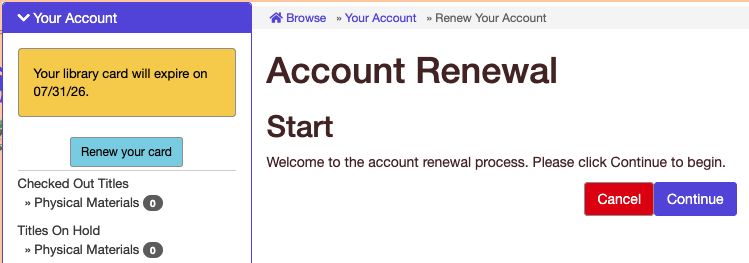
Users will see a prompt to renew their membership in their account. When they click “Renew your card”, they will be taken through a step-by-step process that includes confirming / updating their details. When they submit their request, their membership will be renewed and a new expiry date assigned to their account.
New settings: Primary Configuration > Patron Types > Allow users to renew their account online; Primary Configuration > Library Systems > … > ILS/Account Integration > Card Renewal > ILS Based Card Renewal.
What’s on our mind: Adding additional/custom MARC fields in the record display – Koha 25.11
